Before starting the employee setup process, ensure that your system role has Admin permissions.
Admin access is required to:
Create employee profiles
Configure attendance and leave settings.
Set up payroll details.
Activate employee accounts
To activate an employee, please go to step 5.
STEP 1: Create a New Employee Profile
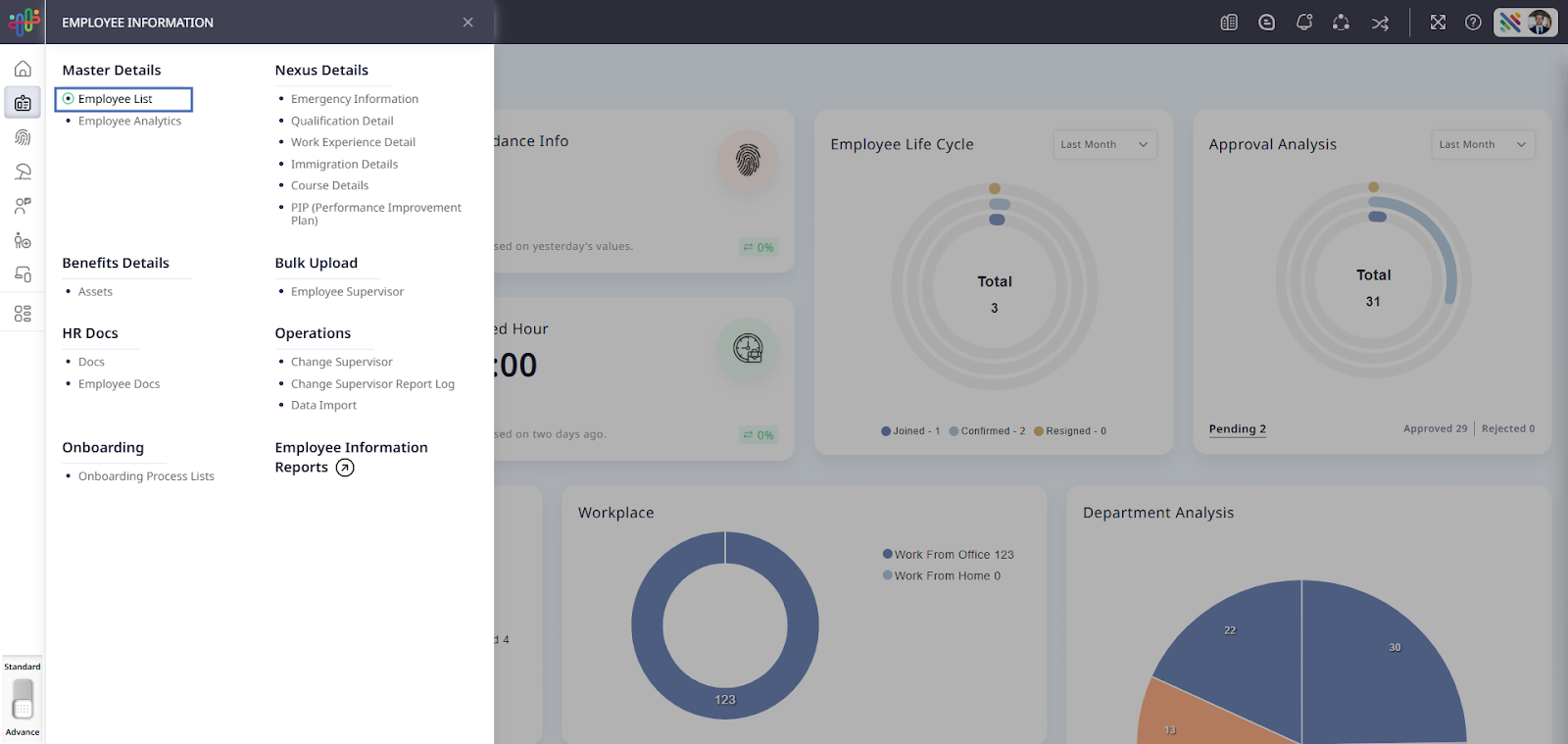
To add a new employee, go to the Employee Information module.
Module Link: Employee Information → Employee List
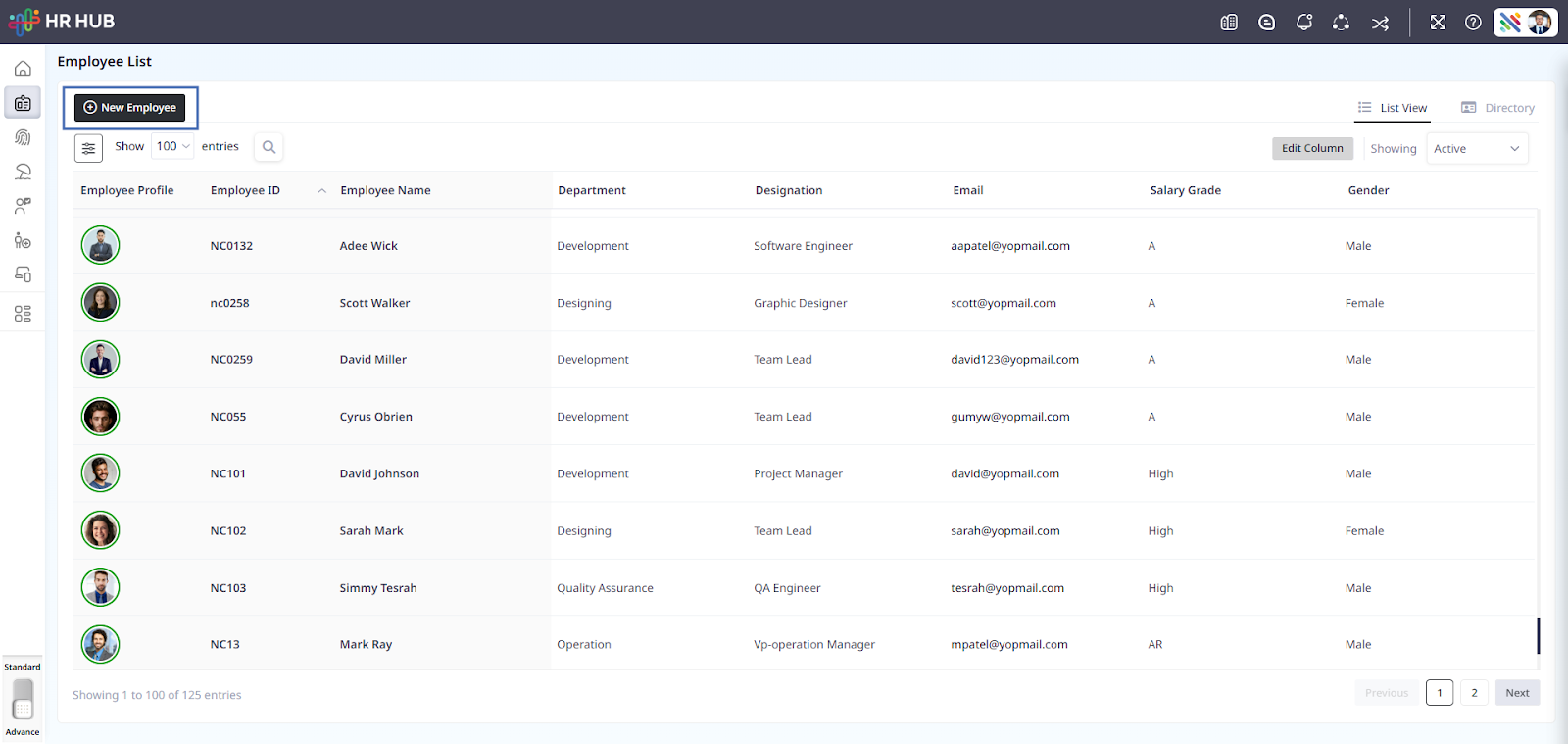
Click on New Employee.
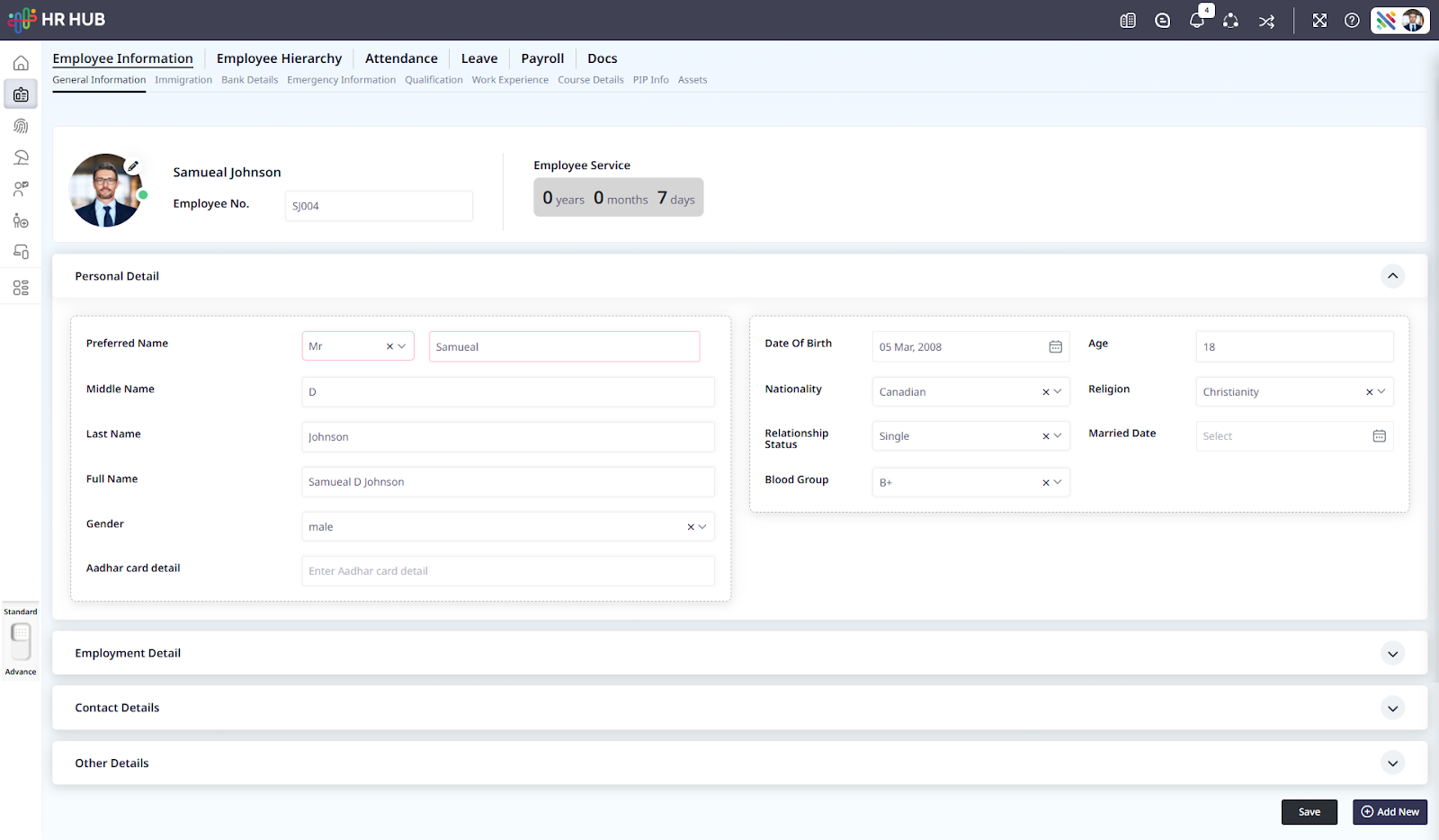
Enter the employee’s basic employment information, which defines the employee’s position, reporting structure, and organizational details.
Here are a few important fields that need special attention while entering the employee details:
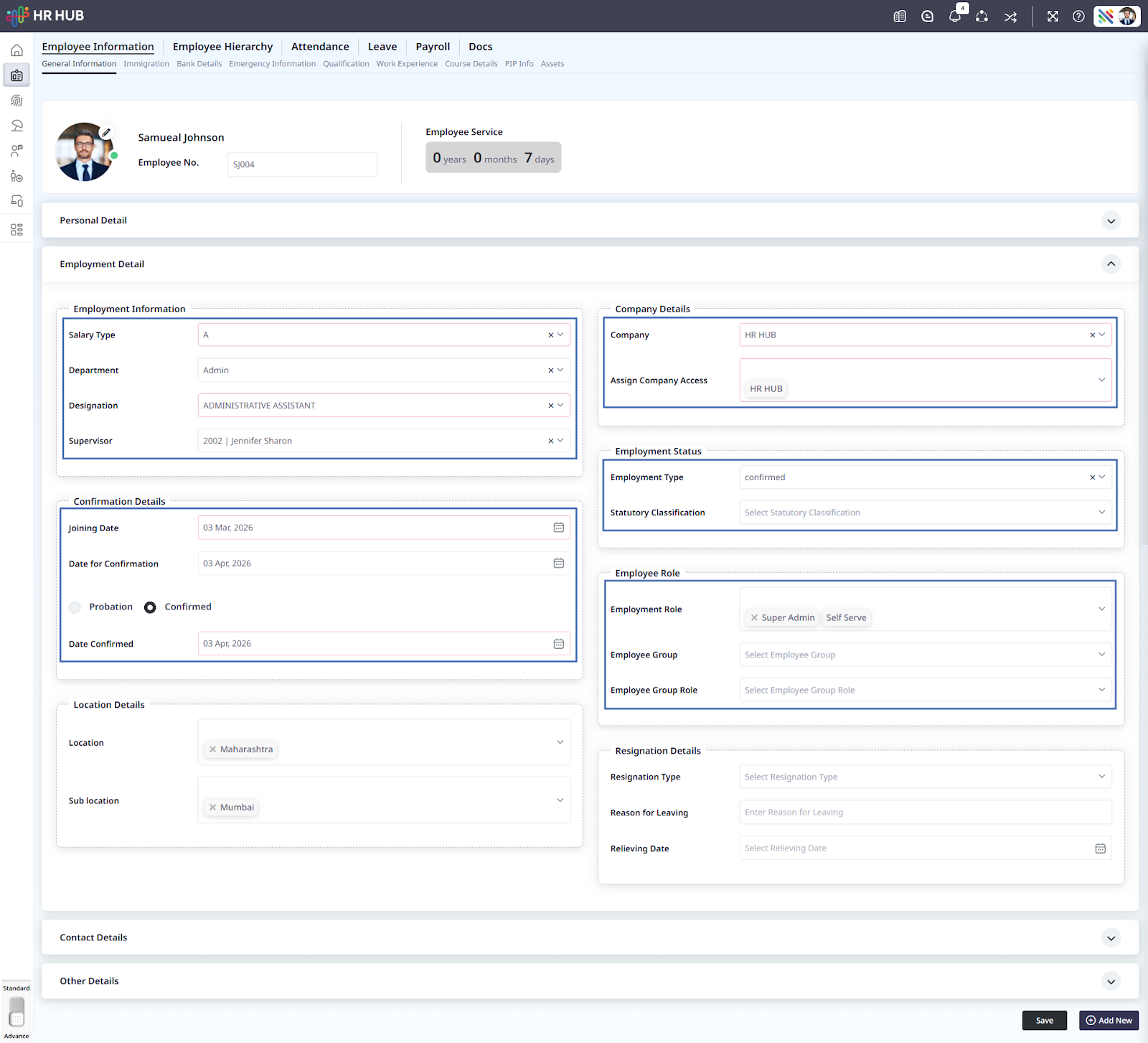
Salary Type: It’s the type of salary structure assigned to the employee. It helps the payroll system understand how the employee’s salary should be calculated. For example, the salary may be defined as fixed or hourly, depending on how the employee is paid according to the company’s payroll structure.
Department: Select the department the employee works in. This helps organize employees within the company structure and allows HR to generate department-based reports.
Designation: Mention the employee’s job title within the organization. This helps define the employee’s role, responsibilities, and level within the company hierarchy.
Supervisor: Here, you need to assign the employee’s reporting manager. The supervisor will receive requests from the employee, such as leave applications and attendance correction approvals, in accordance with company policy.
Company: Select the company entity the employee belongs to. This is important only if the organization follows a multi-company structure within the same system.
Assign Company Access: This field determines which company the employee is allowed to access in the system. It ensures that the employee can only view or work within the assigned company environment.
Employment Type: This field indicates the employee’s employment status in the organization. For example, an employee may be confirmed, on probation, or in another employment stage, depending on company policy.
Statutory Classification: This field classifies employees according to statutory or legal requirements. It helps determine how certain benefits, taxes, or compliance rules apply to the employee.
Joining Date: You need to mention the employee’s official start date with the company. It is used for tracking employment duration, leave eligibility, and payroll calculations.
Date for Confirmation: This field shows the expected date when the employee’s probation period will end. On this date, the employee may be evaluated and confirmed as a permanent employee.
Probation / Confirmed: This option indicates whether the employee is currently in the probation period or has already been confirmed as a permanent employee.
Date Confirmed: This field records the date when the employee was officially confirmed in the organization after completing the probation period.
Employment Role: This field determines the employee's system access level. For example, the Self Service role allows employees to log in and access their own information, such as attendance, leave, and payslips.
STEP 2: Configuring Attendance and Shift Settings
First, save the employee details. Once saved, additional menus for the same employee will appear at the top.
Activating Attendance for an Employee
Before the system can track an employee’s working hours, attendance must be enabled for that employee. This allows the system to record check-in and check-out times and calculate attendance based on the assigned roster schedule.
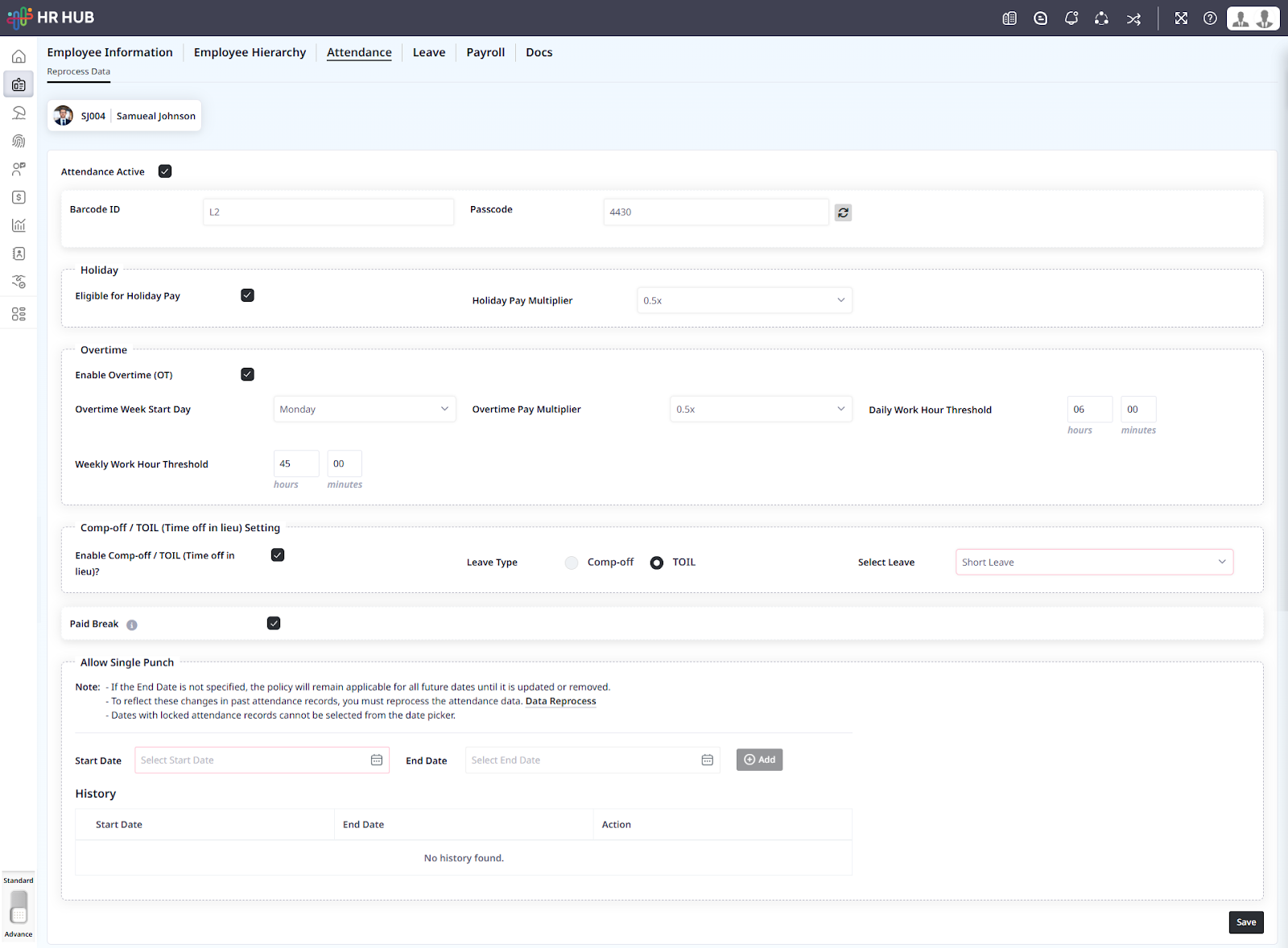
Attendance Active
This option enables attendance tracking for the employee. Once this option is enabled, the system will begin recording the employee’s attendance according to the configured roster and shift schedule.
Select Roster
In this field, you need to select a roster from the list of available rosters. The selected roster determines the shift schedule that the employee will follow. The system will use this roster to calculate the employee’s working hours, late entries, early exits, weekly offs, and overtime.
For example, if the Cayman roster is selected, the employee will follow the shift timings and weekly schedule defined in that roster.
Once the attendance is activated and a roster is assigned, the employee’s attendance will be tracked according to the configured shift schedule.
Allow Single Punch
The Allow Single Punch setting is used when the organization allows attendance to be recorded with a single punch rather than both check-in and check-out.
Normally, employees must punch twice in the system:
Once they start work (Check-in)
Once they finish work (Check-out)
When Single Punch is allowed, the system can record attendance even if only one punch is available. This option is useful for organizations where employees may not always punch out, such as field staff, remote employees, or situations where only entry punches are recorded.
Start Date: This field defines the date from which the single-punch policy applies to the employee.
End Date: This field specifies the date until which the single punch rule will remain active. If no end date is provided, the rule will continue to apply until it is manually changed or removed.
After selecting the start and end dates, clicking Add will apply the single-punch rule to the selected time period.
History
The History section shows all previously configured single punch policies for the employee. It displays:
Start Date of the policy
End Date of the policy
Action options to edit or remove the rule
This helps HR track when the single-punch rule was applied and manage changes as needed.
STEP 3: Assigning Leave to an Employee
The Leave section is used to assign and manage the leave types available to an employee. This allows the system to track how many leave days an employee is entitled to, how many have been used, and how many are still available.
When leave policies are assigned to an employee, the system automatically tracks leave balance, usage, and approvals.
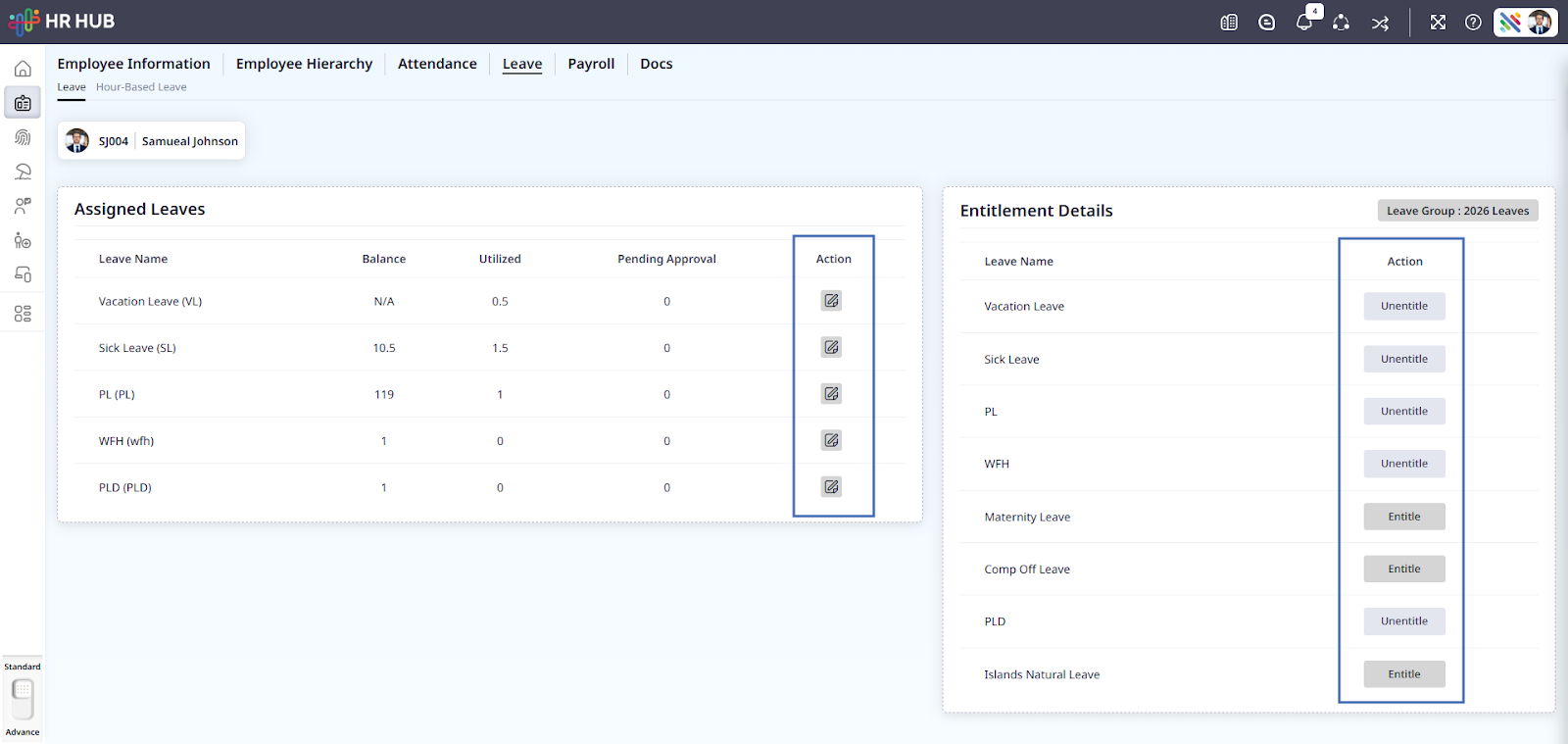
Assigned Leaves
The Assigned Leaves section shows the leave types that are already assigned to the employee. It helps HR and managers quickly see the employee’s leave information.
This section displays the following details:
Leave Name
Shows the type of leave assigned to the employee, such as Annual Leave, Sick Leave, Casual Leave, or other company-defined leave types.
Balance
Displays the number of leave days currently available to the employee.
Utilized
Shows the number of leave days the employee has already used.
Pending Approval
Displays the number of leave requests the employee has submitted that are still awaiting approval.
Entitlement Details
The Entitlement Details section lists the leave types that can be assigned to the employee under the organization’s leave policy.
In this section, HR can assign new leave types to the employee if the employee is eligible. Once assigned, the leave type will appear in the Assigned Leaves section, and the employee can request leave using that entitlement.
This feature helps organizations manage leave policies consistently and ensures employees receive the correct leave benefits in accordance with company rules.
STEP 4: Configuring Employee Payroll and Salary Structure
Payroll configuration ensures that the employee is included in salary processing and that statutory deductions such as pension and health insurance are calculated correctly.
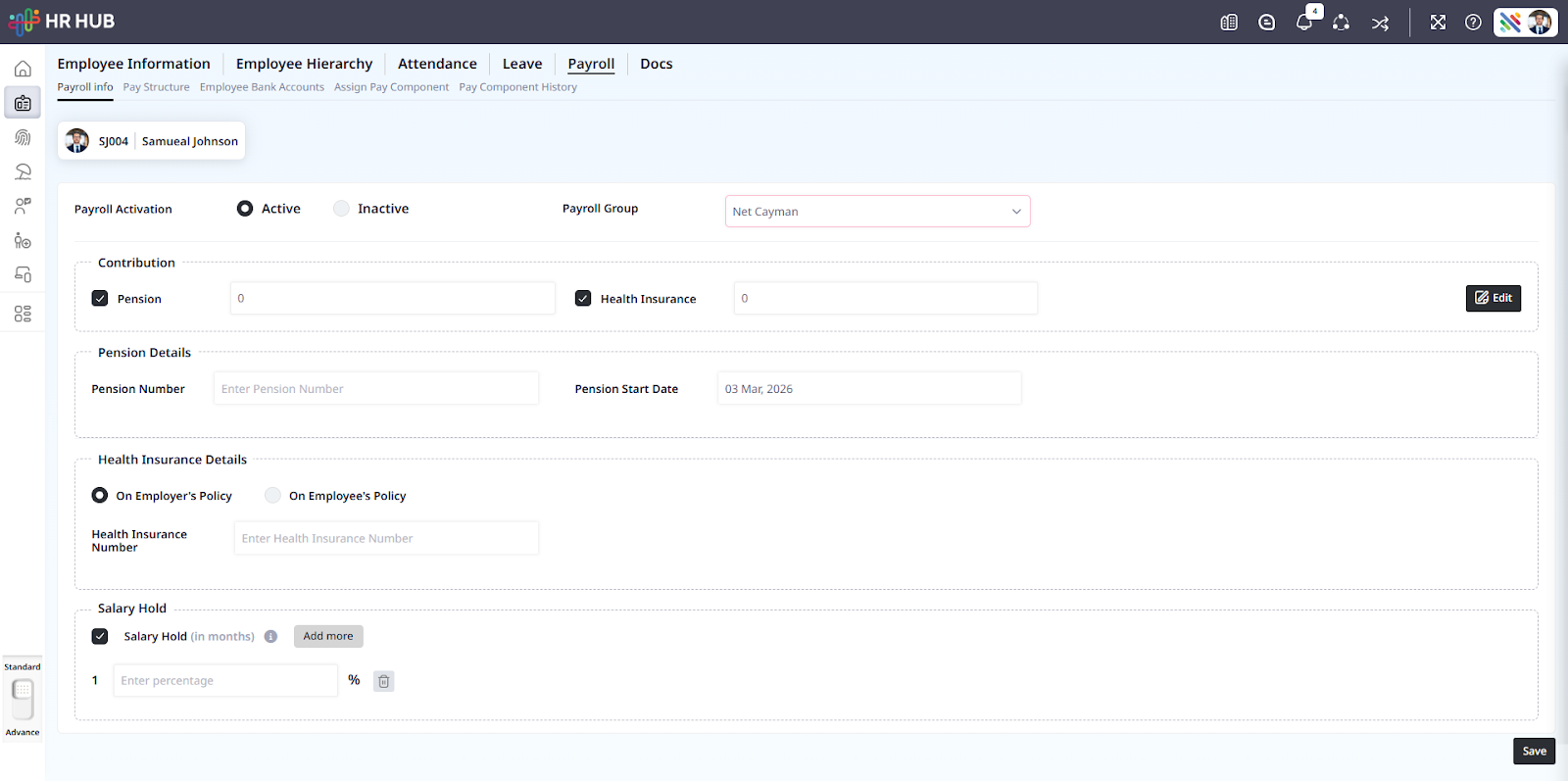
Payroll Activation
The Payroll Activation setting determines whether an employee will be included in the payroll process.
Active: If enabled, the employee is added to the payroll system. This means the employee’s salary will be calculated during payroll processing, and payslips will be generated in accordance with the defined salary structure and payroll settings.
Inactive: Īf enabled, the employee will not be included in payroll calculations. This option can be used when payroll details are not yet configured or when the employee should temporarily be excluded from payroll processing.
Contribution
The Contribution section is used to enable statutory or company-defined payroll contributions for an employee. These contributions are usually related to benefits such as pension schemes or health insurance.
When a contribution is enabled, the payroll system will include it during salary calculation based on the defined rules.
Based on your company’s policy and country-specific regulations, you can configure the pension components and enter the applicable contribution values accordingly.
STEP 5: Activating the Employee in HR HUB
The final step in the setup process is activating the employee account.
Module Link: Security ⇒ Active User Management
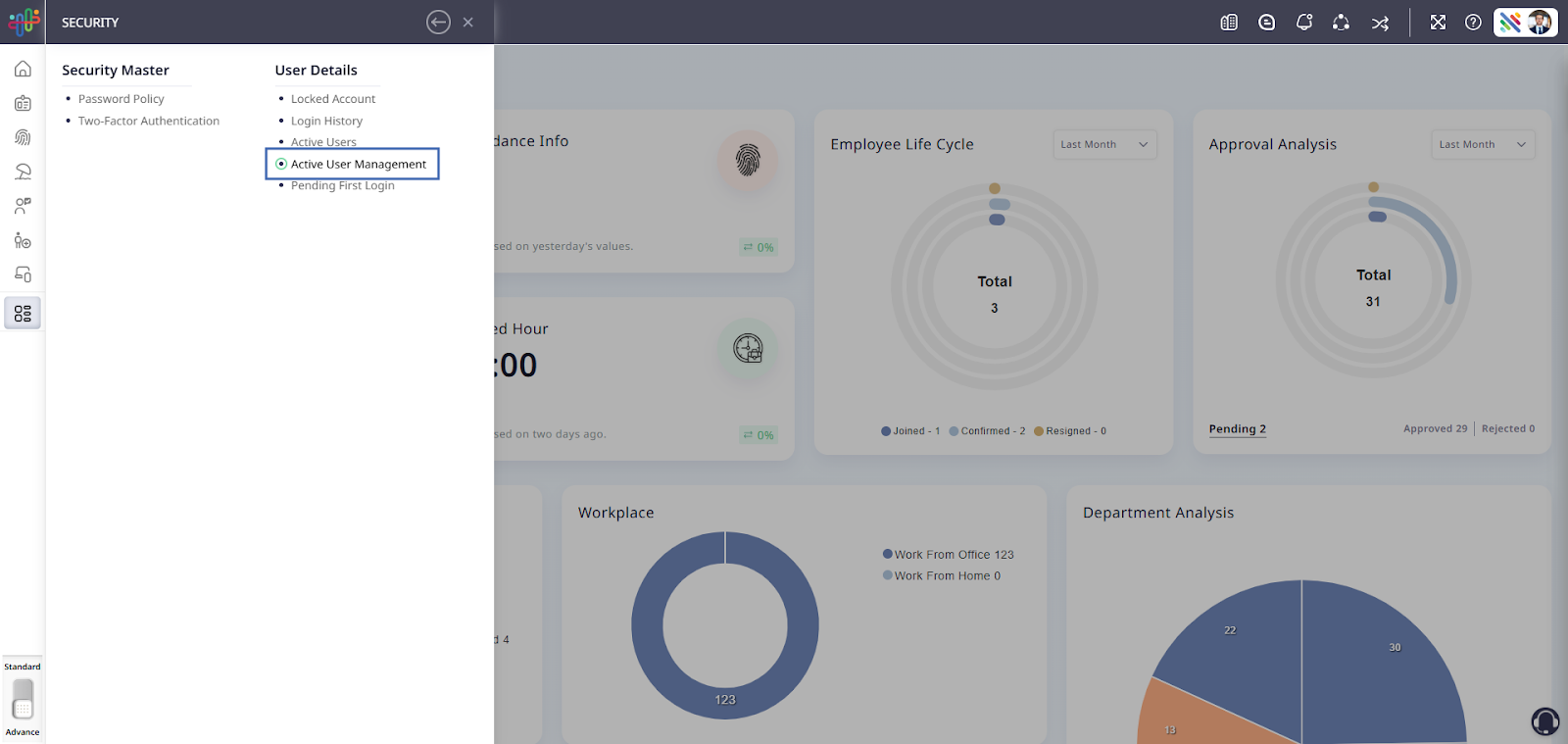
Search the Employee ⇒ Set as Active.
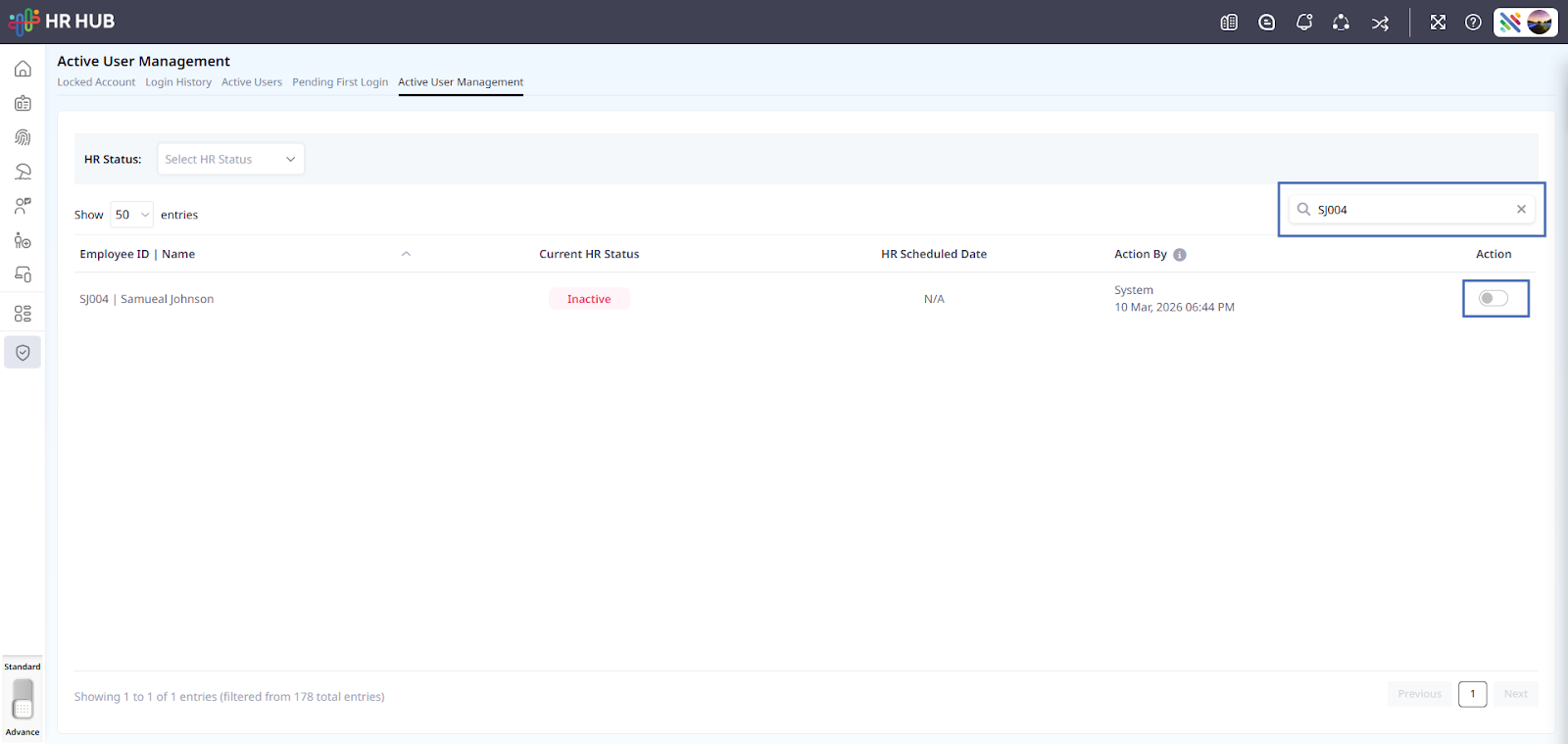
Once the employee status is set to Active, you’ll be prompted to select:
Whether you want to activate this employee at a time
Whether you want to schedule for activating this employee
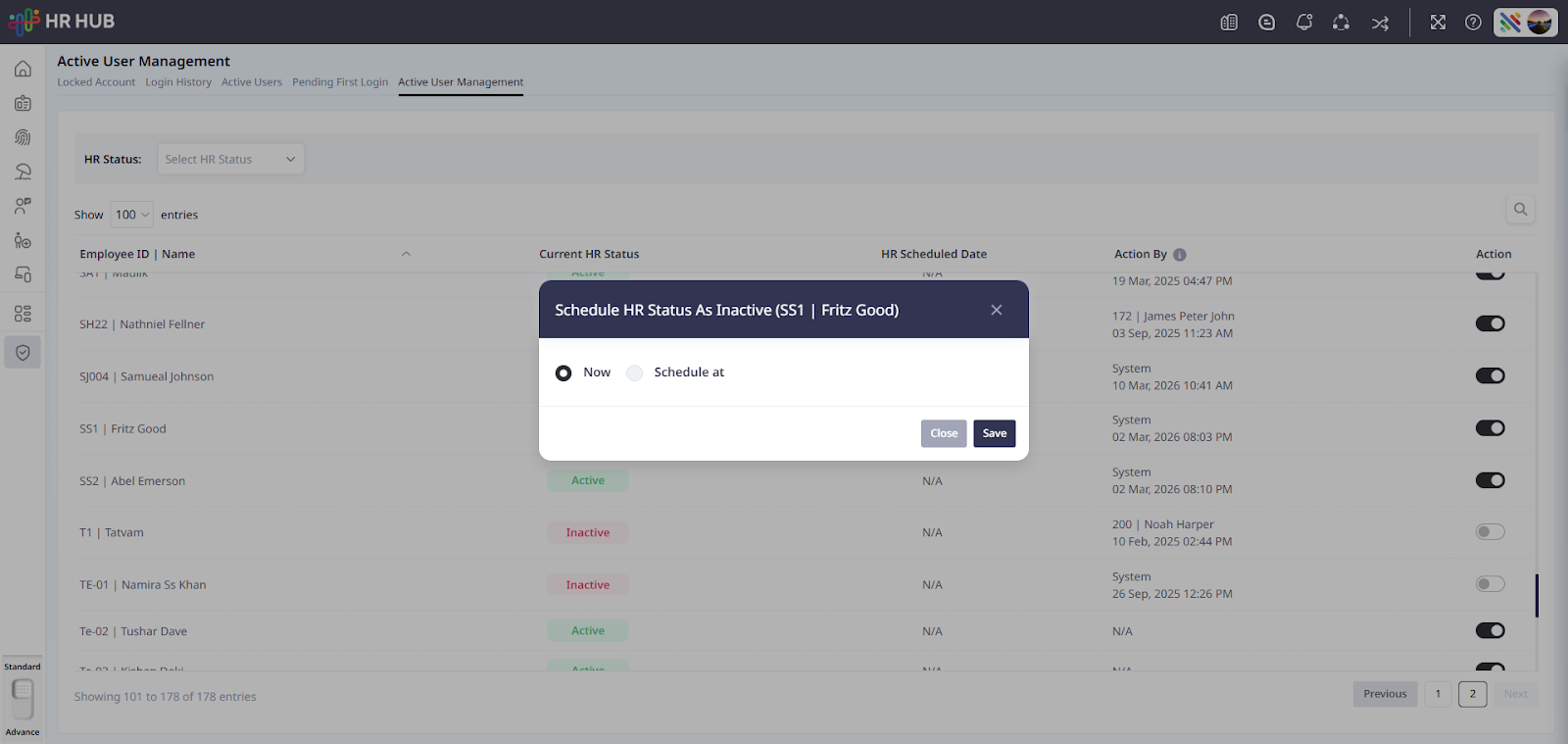
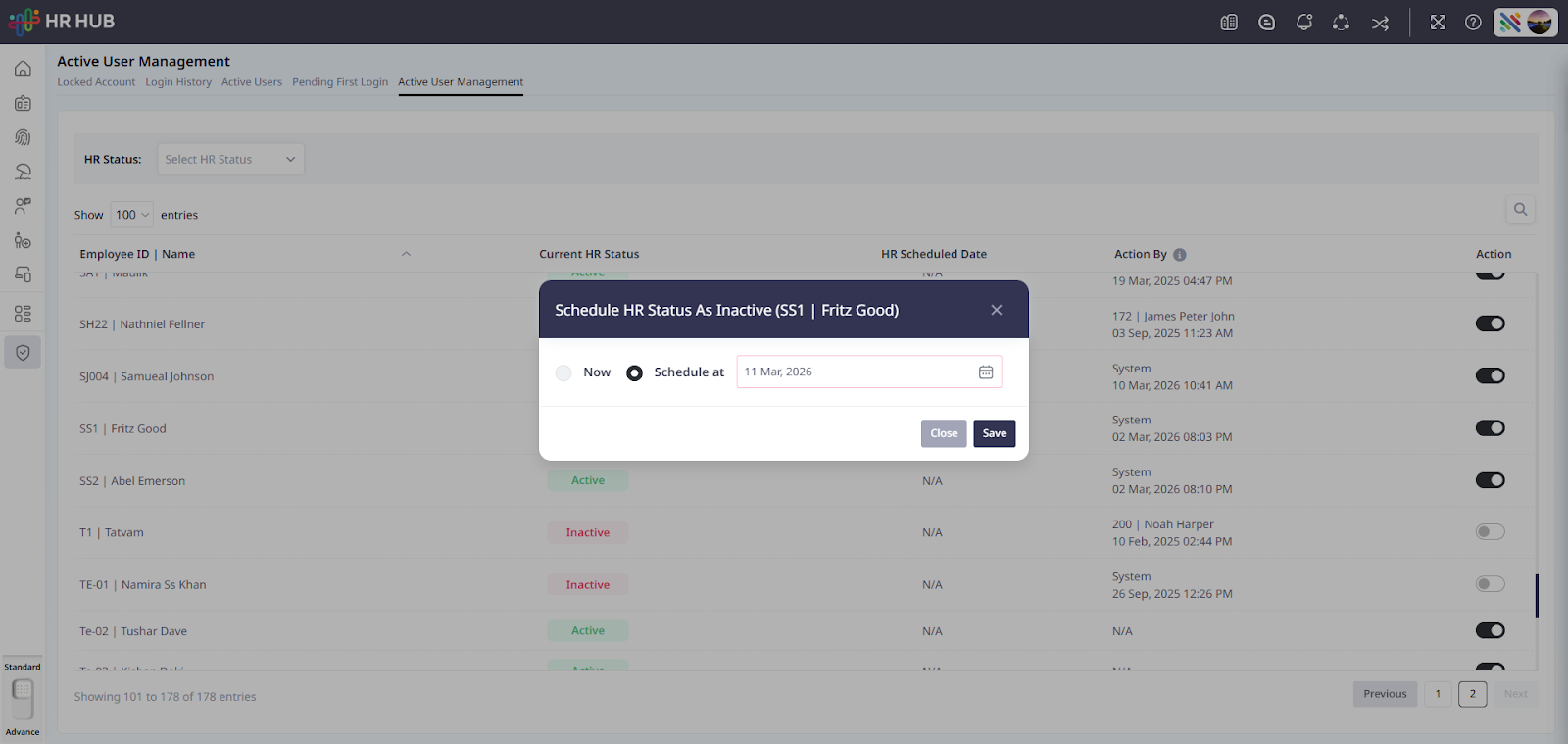
If login access is enabled, the employee will receive login credentials and can access HR HUB to view their attendance, leave balance, payslips, and other employee services.
Final Setup Checklist
Before activating an employee, ensure that the following steps are completed:
Employee profile details are filled correctly
Department, designation, and supervisor are assigned
The attendance shift is configured
Leave entitlements are assigned
Payroll activation and contributions are configured
Once these steps are completed, the employee can be activated in the system and start using HR HUB smoothly.
Was this article helpful?
That’s Great!
Thank you for your feedback
Sorry! We couldn't be helpful
Thank you for your feedback
Feedback sent
We appreciate your effort and will try to fix the article